宏是一组可自动执行的命令(通常由 VBA 编写),能一键完成重复或复杂操作,减少人为错误。在 Word 中,宏常用于文本格式化、页面布局、批量处理图片、邮件合并、表格数据处理等场景。
下面从录制宏入手,介绍宏的操作方法、安全设置及应用技巧。
创建与录制宏
- 添加到快速访问工具栏:点击 文件>选项>快速访问工具栏,命令选 宏,选中宏并添加。
- 设置快捷键:点击 文件>选项>自定义功能区>键盘快捷方式自定义,类别选 宏,选中宏并输入快捷键(如
Ctrl+Shift+Q)。
录制宏无需编写代码,Word 会自动记录操作步骤。例如,将标题设置为黑体、三号、居中,录制后只需选中文字点击按钮即可重复执行。
 录制宏
录制宏
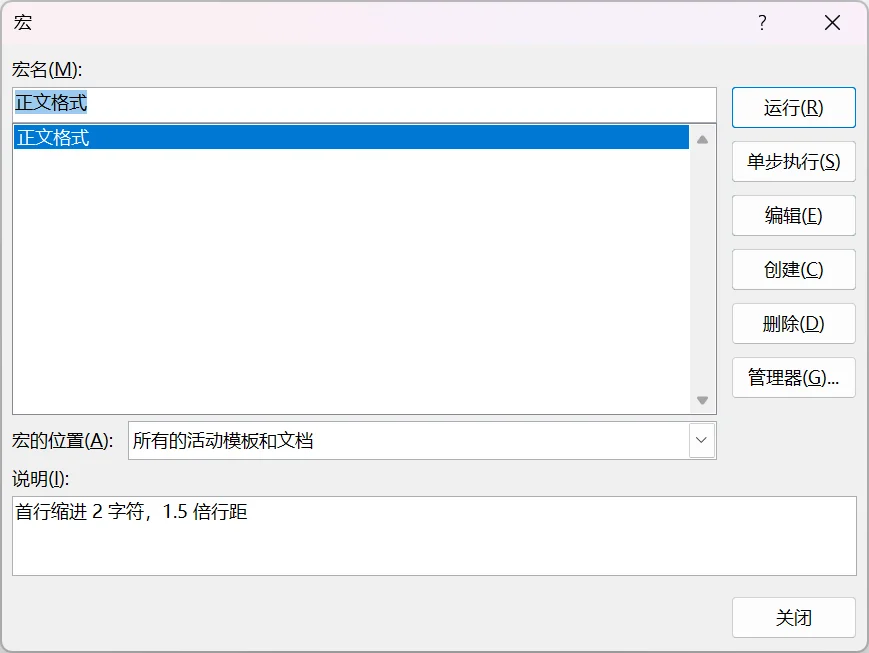
以设置正文段落为首行缩进 2 字符、1.5 倍行距为例:
- 点击 文件>选项>自定义功能区,勾选 开发工具。
- 点击 开发工具>录制宏,输入宏名(如
正文格式)和说明,选择保存位置所有文档或当前文档,录制时鼠标会显示小磁带图标。 - 选中文本,设置段落格式为首行缩进 2 字符、1.5 倍行距,点击 停止录制。
应用宏时,选中文字,点击 开发工具>宏>选中宏>运行。
如果要修改宏(如将行距改为 2 倍),点击 开发工具>宏>选中正文格式>编辑,在 VBA 编辑窗口中将 .LineSpacingRule = wdLineSpace1pt5 修改为 .LineSpacingRule = wdLineSpace2。
编辑与运行宏
点击 开发工具>Visual Basic(Alt+F11),在左侧窗口中选择当前文档或 Normal,点击 插入>模块,将 VBA 代码粘贴到右侧编辑区,关闭即可自动保存。
- 插入到
Normal:宏对所有文档生效。 - 插入到当前文档:仅当前文件可用,需保存为
.docm。
点击 开发工具>宏>选中宏>运行(Alt+F8),即可运行该宏,也可将宏绑定到按钮或快捷键。
如果需要分享宏代码,在 VBA 编辑器中右键模块,导出为 .bas,对方通过 文件>导入文件 即可。
宏的安全性
Word 默认禁用宏,打开带宏的文档时,顶部提示栏显示 宏已被禁用,点击 启用内容 即可。
如果希望自动启用,可将文件夹设为受信任位置:点击 文件>选项>信任中心>信任中心设置>受信任位置>添加新位置,加入存放宏文档的文件夹。建议仅信任自己的文件夹,避免运行来源不明的宏。
宏的应用实例
按节拆分文档
- 使用场景:文档已用分节符分成多个章节(如论文、合同),希望每节单独保存。
- 操作提示:确保文档已保存到本地,运行宏后在同目录创建
拆分结果 文件夹,生成 文档_001.docx、文档_002.docx 等文件。
 1
 2
 3
 4
 5
 6
 7
 8
 9
10
11
12
13
14
15
16
17
18
19
20
21
22
23
24
25
26
27
28
29
30
31
32
33
34
35
36
37
38
39
40
41
42
43
44
45
46
47
48
49
50
51
52
53
54
55
56
57
58
59
60
61
62
63
64
65
66
67
68
69
70
71
72
73
74
75
76
77
78
79
80
81
82
83
84
85
86
87
88
89
90
91
92
93
94
95
96
97
| Attribute VB_Name = "模块1"
Sub 按节拆分文档()
' 功能:按节拆分文档,保持格式,文件夹命名为 "拆分结果",并优化空白文档问题。
Dim originalDoc As Document, newDoc As Document
Dim originalSection As Section
Dim i As Long
Dim saveFolderPath As String, fso As Object
Dim originalRangeToCopy As Range
' 优化点1:保存当前活动文档的引用
Set originalDoc = ActiveDocument
Application.ScreenUpdating = False
Application.DisplayAlerts = False
On Error GoTo ErrorHandler
' 1. 设置固定的保存文件夹路径
saveFolderPath = originalDoc.Path & "\拆分结果\"
' 使用FileSystemObject来操作文件夹
Set fso = CreateObject("Scripting.FileSystemObject")
' 如果“拆分结果”文件夹已存在,则删除其中的所有文件(避免文件混杂)
If fso.FolderExists(saveFolderPath) Then
On Error Resume Next ' 防止因个别文件占用导致删除失败
fso.DeleteFile saveFolderPath & "*.*" ' 删除文件夹内所有文件
On Error GoTo ErrorHandler
Else
' 如果文件夹不存在,则创建它
fso.CreateFolder saveFolderPath
End If
' 2. 遍历每一节进行拆分
For i = 1 To originalDoc.Sections.Count
Set originalSection = originalDoc.Sections(i)
Set originalRangeToCopy = originalSection.Range.Duplicate
' 精确调整复制范围,排除节末尾的分节符(防止多余空白页)
If i < originalDoc.Sections.Count Then
originalRangeToCopy.End = originalSection.Range.End - 1
End If
' 优化点2:明确检查范围是否有实质内容,避免为空内容创建文档
If Len(Trim(originalRangeToCopy.Text)) <= 1 Then
' 如果内容仅为空白或一个控制符,则跳过
GoTo ContinueNext
End If
' 优化点3:创建新文档并立即粘贴内容
Set newDoc = Documents.Add(DocumentType:=wdNewBlankDocument, Visible:=False)
originalRangeToCopy.Copy
newDoc.Content.PasteAndFormat (wdFormatOriginalFormatting)
' 1:1复制页面设置
With newDoc.PageSetup
.Orientation = originalSection.PageSetup.Orientation
.TopMargin = originalSection.PageSetup.TopMargin
.BottomMargin = originalSection.PageSetup.BottomMargin
.LeftMargin = originalSection.PageSetup.LeftMargin
.RightMargin = originalSection.PageSetup.RightMargin
.PageWidth = originalSection.PageSetup.PageWidth
.PageHeight = originalSection.PageSetup.PageHeight
End With
' 优化点4:生成文件名并保存,保存后立即关闭并释放对象
newDoc.SaveAs2 fileName:=saveFolderPath & "文档_" & Format(i, "000") & ".docx"
newDoc.Close SaveChanges:=False
Set newDoc = Nothing ' 立即释放
ContinueNext:
Set originalRangeToCopy = Nothing
Next i
' 3. 宏结束后,确保激活并显示原始文档
originalDoc.Activate
Application.ScreenUpdating = True
Application.DisplayAlerts = True
MsgBox "拆分完成!" & vbCrLf & _
"共生成 " & originalDoc.Sections.Count & " 个文件。" & vbCrLf & _
"文件已保存至:" & saveFolderPath, vbInformation
' 释放对象
Set fso = Nothing
Exit Sub
ErrorHandler:
' 出错时进行清理
If Not newDoc Is Nothing Then
newDoc.Close SaveChanges:=False
Set newDoc = Nothing
End If
Application.ScreenUpdating = True
Application.DisplayAlerts = True
MsgBox "处理第 " & i & " 节时出错:" & Err.Description, vbCritical
Set fso = Nothing
End Sub
|
多文档合并
- 使用场景:将多篇零散文档(如章节、周报、合同)合并为一个完整文档,保持原格式。
- 操作提示:运行宏后弹出文件选择对话框,按
Ctrl 多选 Word 文档,宏会按顺序插入当前文档末尾,并在每个文档后自动插入分页符。
 1
 2
 3
 4
 5
 6
 7
 8
 9
10
11
12
13
14
15
16
17
18
19
20
21
22
23
24
25
26
27
28
29
30
31
32
33
34
35
36
37
38
39
40
41
| Attribute VB_Name = "模块1"
Sub 多文档合并()
Dim time_start As Single: time_start = Timer
Dim word_result As Document
Dim word_temp As Document
Dim file_dialog As FileDialog
Dim str As String
Dim file
Dim num As Long
Set word_result = ActiveDocument
Set file_dialog = Application.FileDialog(msoFileDialogFilePicker)
With file_dialog
.AllowMultiSelect = True
.Title = "请选择【一个或多个】需要与当前文档合并的文件"
With .Filters
.Clear
.Add "Word文件", "*.doc*;*.dot*;*.wps"
.Add "所有文件", "*.*"
End With
If .Show Then
Application.ScreenUpdating = False
num = .SelectedItems.Count
For Each file In .SelectedItems
Set word_temp = Documents.Open(file)
word_temp.Range.Copy
word_result.Range(word_result.Range.End - 1, word_result.Range.End).Select
DoEvents
Selection.Paste
Selection.InsertBreak
word_temp.Close wdDoNotSaveChanges
Next
Application.ScreenUpdating = True
End If
End With
Set word_result = Nothing
Set word_temp = Nothing
Set file_dialog = Nothing
str = Format(Timer - time_start, "均已成功合并;共用时0秒!")
str = Format(num, "您选择合并0个文件,") & str
MsgBox str, vbInformation, "文件合并结果"
End Sub
|
邮件合并自动分割文档
- 使用场景:用于邮件合并生成的文档(如证书、通知书、合同),拆分为单独文件,文件名取自数据源字段(如姓名、合同编号)。
- 操作提示:确保当前文档为已连接数据源的邮件合并主文档且已保存;运行宏后输入用作文件名的字段名,确认记录总数后,宏在同目录创建
分割结果_邮件合并 文件夹,并生成独立文件。
  1
  2
  3
  4
  5
  6
  7
  8
  9
 10
 11
 12
 13
 14
 15
 16
 17
 18
 19
 20
 21
 22
 23
 24
 25
 26
 27
 28
 29
 30
 31
 32
 33
 34
 35
 36
 37
 38
 39
 40
 41
 42
 43
 44
 45
 46
 47
 48
 49
 50
 51
 52
 53
 54
 55
 56
 57
 58
 59
 60
 61
 62
 63
 64
 65
 66
 67
 68
 69
 70
 71
 72
 73
 74
 75
 76
 77
 78
 79
 80
 81
 82
 83
 84
 85
 86
 87
 88
 89
 90
 91
 92
 93
 94
 95
 96
 97
 98
 99
100
101
102
103
104
105
106
107
108
109
110
111
112
113
114
115
116
117
118
119
120
121
122
123
124
125
126
127
128
129
130
131
132
133
134
135
136
137
138
139
140
141
142
143
144
145
146
147
148
149
150
151
152
153
154
155
| Attribute VB_Name = "模块1"
Sub 邮件合并自动分割文档_通用版()
On Error GoTo ErrorHandler
Dim doc As Document
Dim newDoc As Document
Dim savePath As String
Dim currentPath As String
Dim i As Long
Dim recordCount As Long
Dim fieldName As String
Dim fileName As String
Dim successCount As Long
Dim failCount As Long
Dim failMsg As String
' 1. 检查文档是否已保存
If ActiveDocument.Path = "" Then
MsgBox "请先保存当前文档!", vbExclamation
Exit Sub
Else
currentPath = ActiveDocument.Path & "\"
End If
Set doc = ActiveDocument
' 2. 检查是否是邮件合并主文档
If doc.MailMerge.MainDocumentType = wdNotAMergeDocument Then
MsgBox "当前文档不是邮件合并主文档,请先设置数据源。", vbExclamation
Exit Sub
End If
' 3. 获取用作文件名的字段名
fieldName = InputBox("请输入数据源中用作文件名的字段名(例如:姓名、合同编号等):", _
"字段名输入", "项目名称")
If fieldName = "" Then
MsgBox "未输入字段名,操作取消。", vbInformation
Exit Sub
End If
' 4. 获取总记录数
On Error Resume Next
recordCount = doc.MailMerge.DataSource.recordCount
On Error GoTo ErrorHandler
If recordCount <= 0 Then
MsgBox "数据源中没有记录。", vbExclamation
Exit Sub
End If
' 确认继续
If MsgBox("找到 " & recordCount & " 条记录。是否按字段【" & fieldName & "】拆分为单独文档?", _
vbYesNo + vbQuestion, "确认拆分") <> vbYes Then
Exit Sub
End If
' 5. 创建保存文件夹
savePath = currentPath & "分割结果_邮件合并\"
If Dir(savePath, vbDirectory) = "" Then MkDir savePath
' 6. 逐条处理
Application.ScreenUpdating = False
successCount = 0
failCount = 0
failMsg = ""
For i = 1 To recordCount
On Error Resume Next
' 定位到当前记录
doc.MailMerge.DataSource.ActiveRecord = i
doc.MailMerge.DataSource.FirstRecord = i
doc.MailMerge.DataSource.LastRecord = i
' 执行合并到新文档
doc.MailMerge.Destination = wdSendToNewDocument
doc.MailMerge.Execute
If Err.Number <> 0 Then
failCount = failCount + 1
failMsg = failMsg & "记录 " & i & ":" & Err.Description & vbCrLf
Err.Clear
On Error GoTo ErrorHandler
GoTo NextRecord
End If
Set newDoc = ActiveDocument
' 获取文件名(从数据字段)
On Error Resume Next
fileName = doc.MailMerge.DataSource.DataFields(fieldName).Value
If Err.Number <> 0 Then
fileName = "记录_" & Format(i, "000")
Err.Clear
End If
On Error GoTo ErrorHandler
' 处理空值
If fileName = "" Then fileName = "记录_" & Format(i, "000")
' 清理非法字符
fileName = CleanFileName(fileName)
' 保存并关闭
newDoc.SaveAs2 savePath & fileName & ".docx"
newDoc.Close SaveChanges:=False
successCount = successCount + 1
NextRecord:
Set newDoc = Nothing
Next i
Application.ScreenUpdating = True
' 7. 完成提示
Dim msg As String
msg = "拆分完成!" & vbCrLf
msg = msg & "成功生成:" & successCount & " 个文件" & vbCrLf
If failCount > 0 Then
msg = msg & "失败:" & failCount & " 条记录" & vbCrLf & vbCrLf
msg = msg & "失败详情:" & vbCrLf & failMsg
Else
msg = msg & "所有记录处理成功!" & vbCrLf
End If
msg = msg & "文件保存在:" & savePath
MsgBox msg, vbInformation, "邮件合并拆分结果"
' 询问是否打开文件夹
If MsgBox("是否打开保存文件夹?", vbYesNo, "打开文件夹") = vbYes Then
Shell "explorer.exe """ & savePath & """", vbNormalFocus
End If
Exit Sub
ErrorHandler:
Application.ScreenUpdating = True
MsgBox "发生错误:" & vbCrLf & _
"错误号:" & Err.Number & vbCrLf & _
"错误描述:" & Err.Description, vbCritical
End Sub
Function CleanFileName(str As String) As String
Dim illegalChars As Variant
Dim char As Variant
illegalChars = Array("/", "\", ":", "*", "?", """", "<", ">", "|", Chr(13), Chr(10))
For Each char In illegalChars
str = Replace(str, char, "-")
Next
' 去除首尾空格和点号
str = Trim(str)
If Left(str, 1) = "." Then str = "文件" & str
If str = "" Then str = "未命名"
CleanFileName = str
End Function
|

 张小鱼
张小鱼